
Introduction
The Group Admin Portal enables the management of Content Assignments and recommendations for your group, along with providing access to Manage CME and the Medality Dashboards.
This guide is focused on Content Assignment.
How to access the Group Admin Portal
Go to https://medality.com/ and login with your username and password.How to create a new task
Select New Education Task to navigate to the New Education Task page.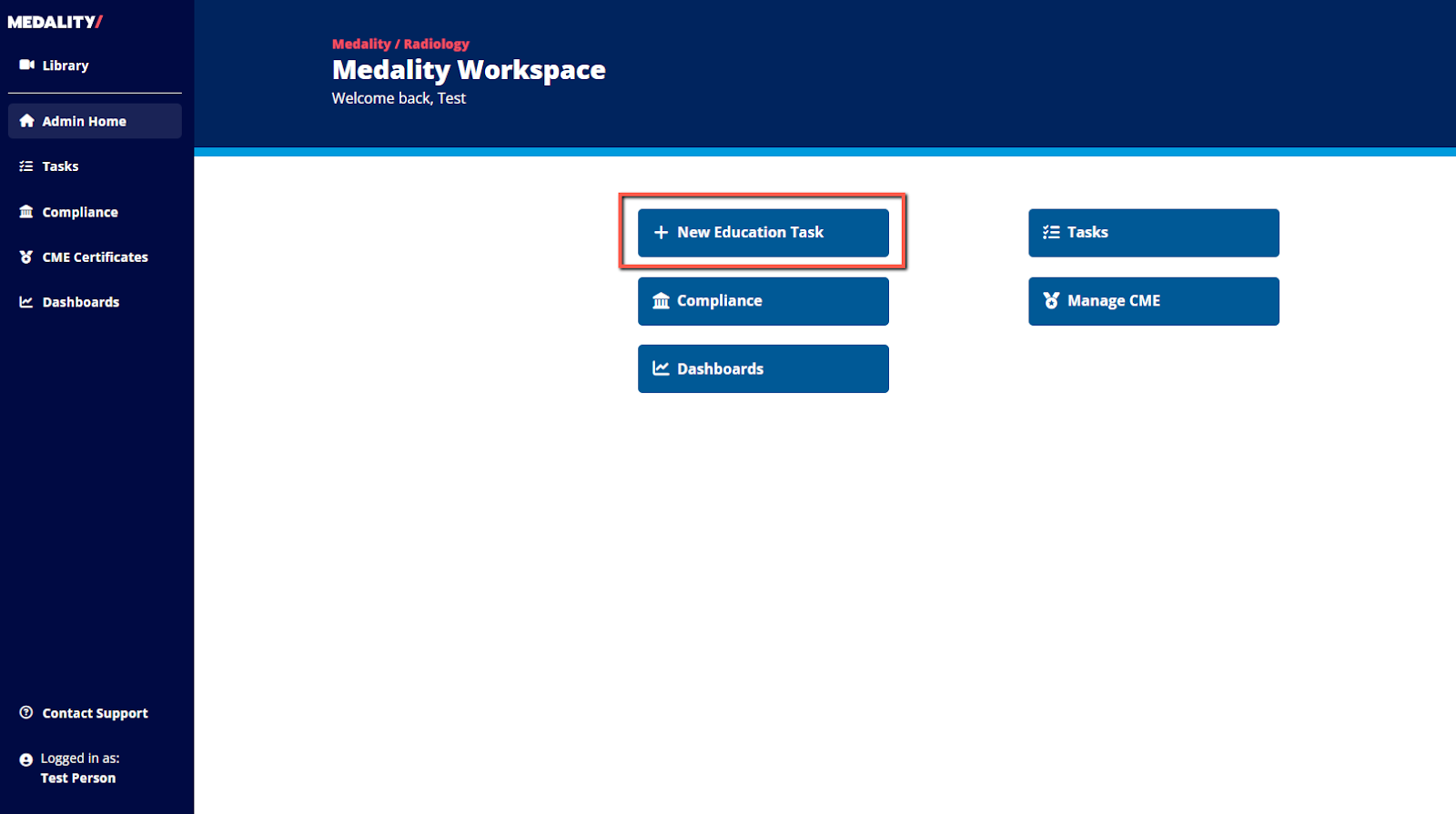
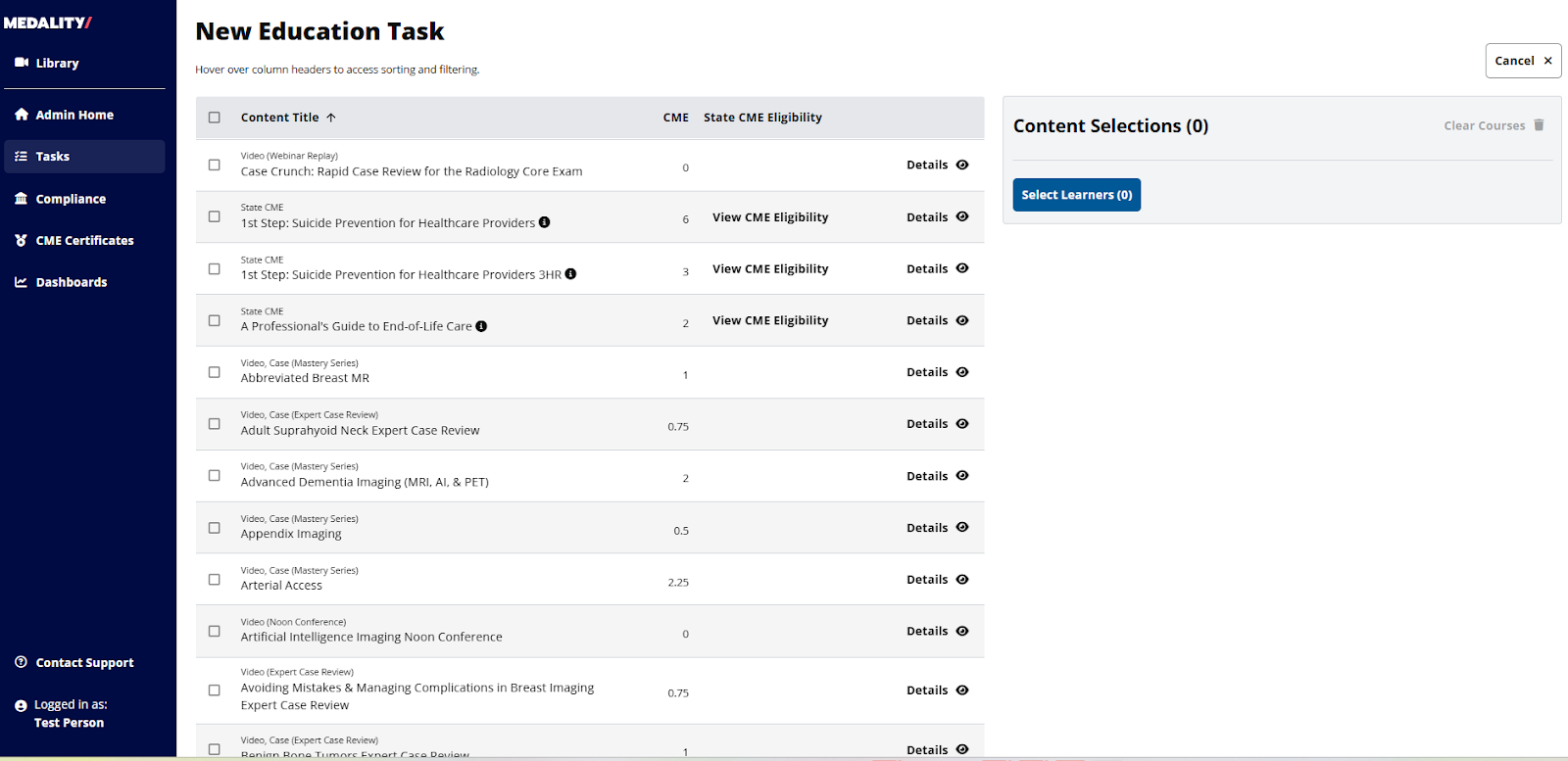
Once you have selected the New Education Task page, you will see that on the left side is the list of all content (courses and programs) available for your group.
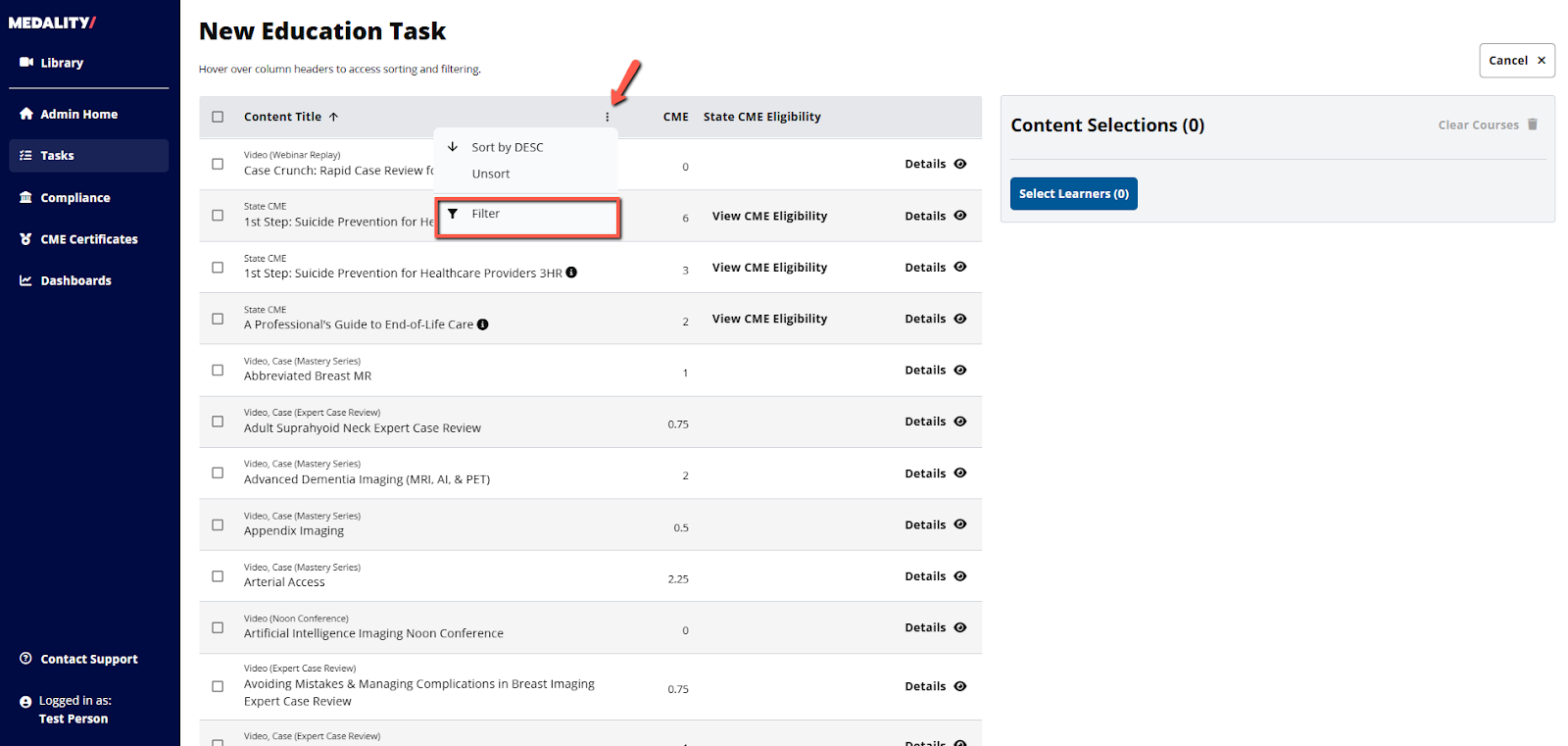
You can easily filter down to your desired content by selecting the 3-dot Menu and Filter.
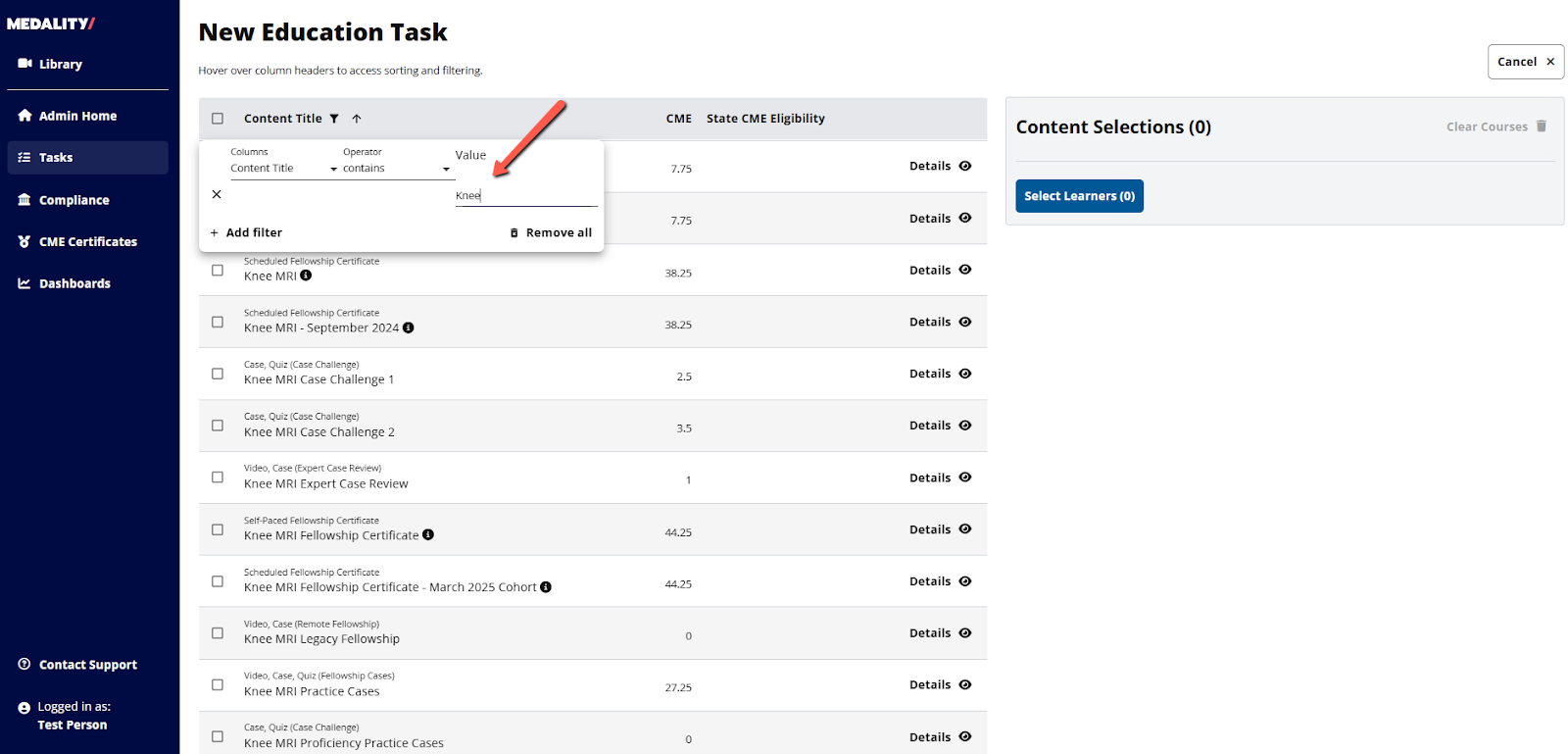
Select the content to assign by clicking the checkbox next to each course or program. Selected content will be added to the Content Selections section on the right.
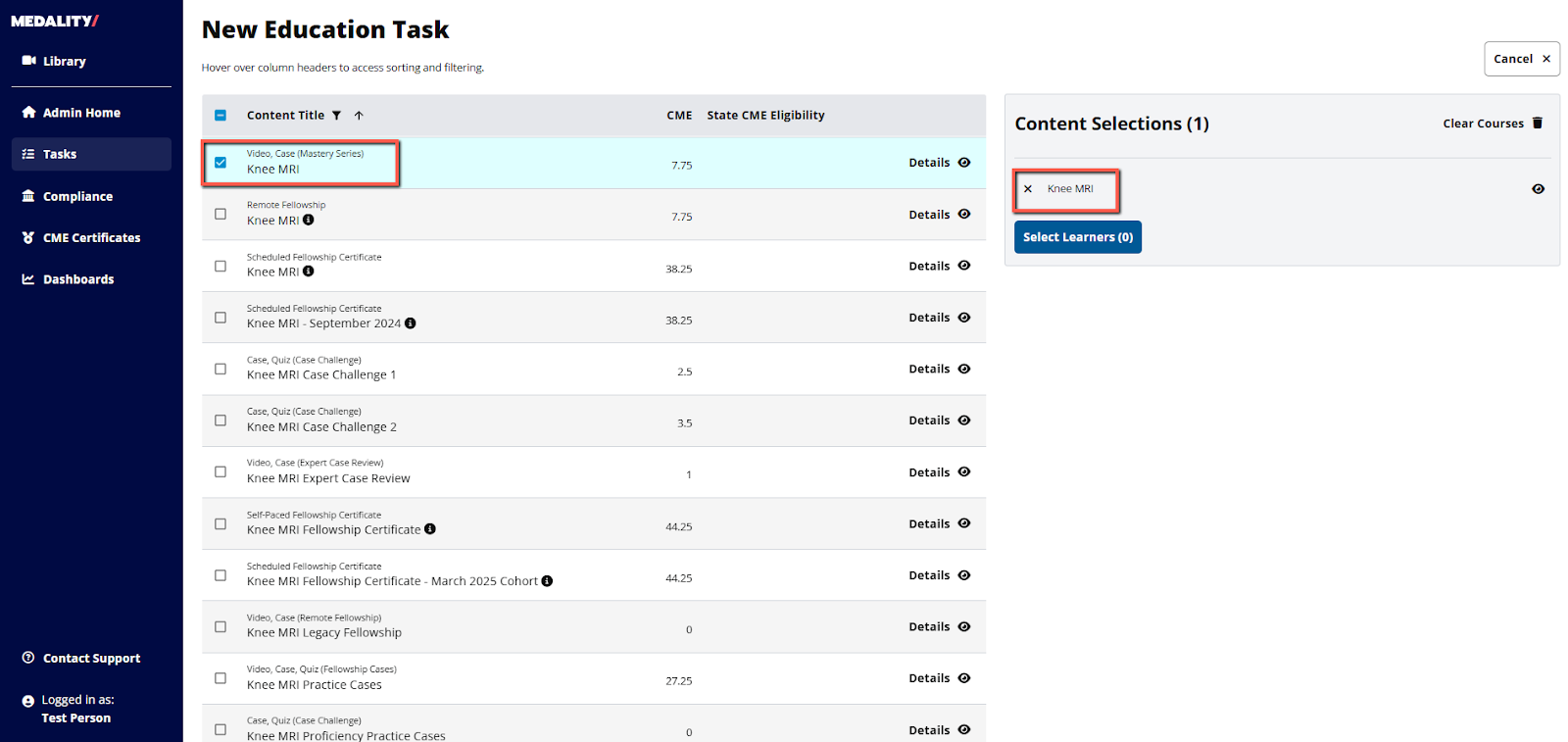
- Select the X to remove them from your selections.
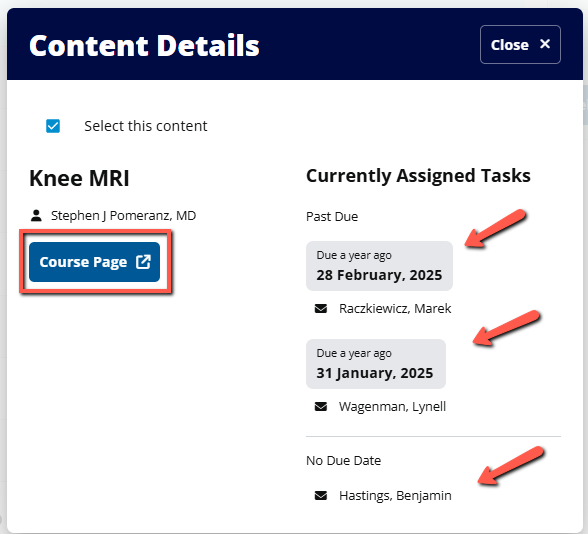
- Select Details to open the Content Details popup window.

In the Content Details popup window, you can click Course Page (or Program Page) to navigate to the course homepage that will provide all the details about the course.
You can also see who is currently assigned to the course or program, and their due dates. If no due date exists then the learner’s name will still display.
Selecting Learners for Assignment
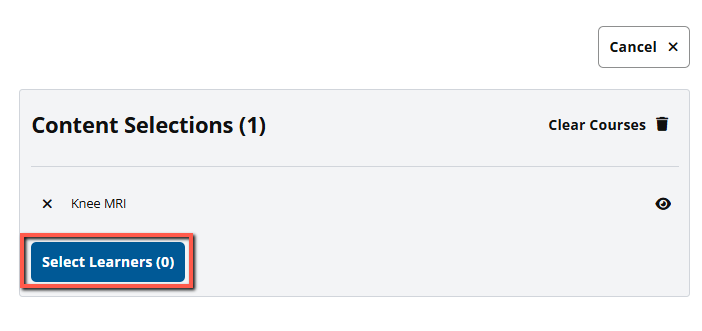
On the New Education Task Assignment page, after you have selected your content, select Select Users on the right side to open the user selection modal.
Under Users, search for and/or select the learners from the list, add a Due date (optional) and a personal note (optional) for the learner to see.
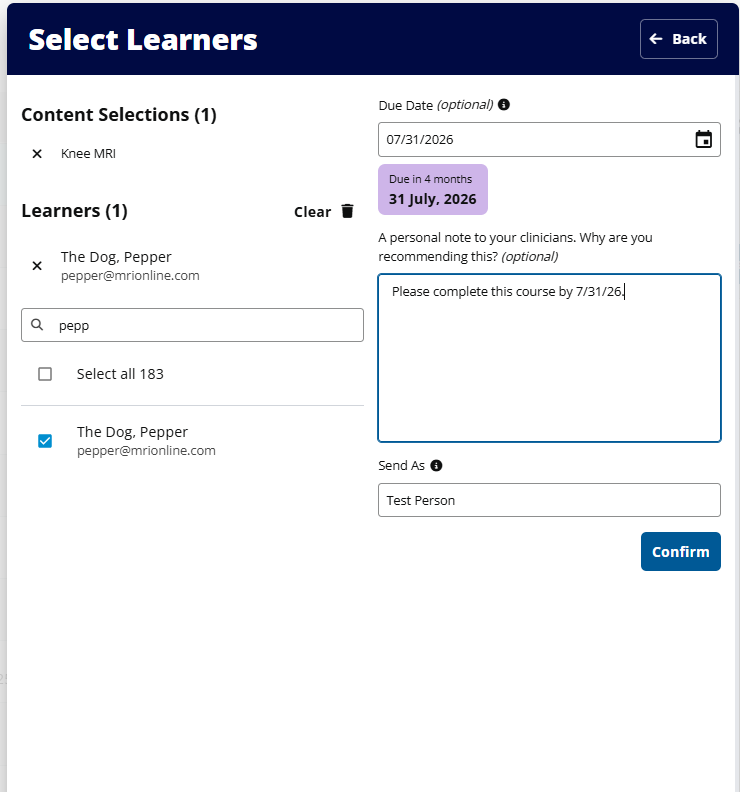
Click Confirm to assign the task.
⚠️ If you pick a learner that already has been assigned your course or program, you will see an alert. Any learners who already have been assigned will be skipped. If you want to change a learner’s due date, or send them a new message, you first need to go to Edit Assignments and delete their previous assignment. See Remove assignments later in this guide.
After you select Confirm, the learners will receive an email informing them that they have been assigned to one or more courses or programs.
Each time you select Confirm an email will immediately go to the learners. To avoid learners getting multiple emails if you are assigning them multiple courses, make sure you have all the courses selected that you intend to assign that learner. The email will list all the courses together.
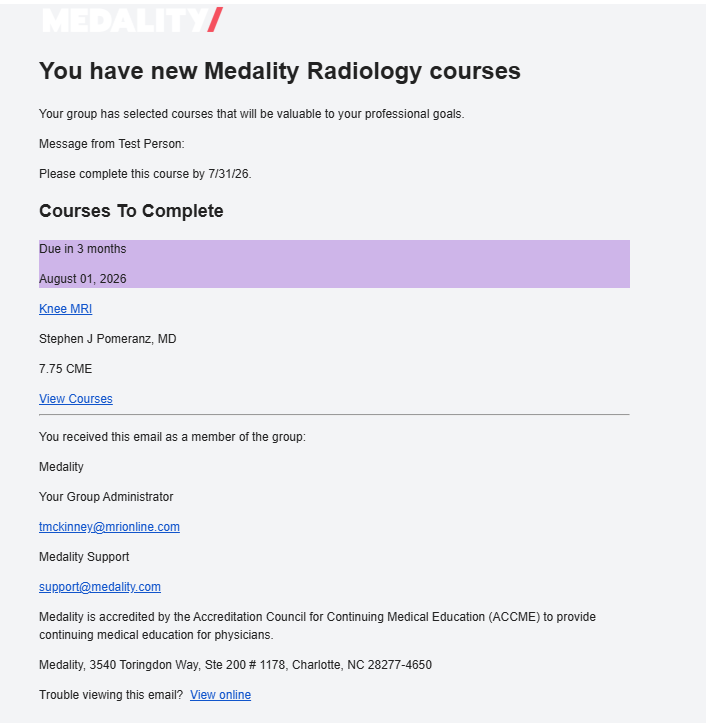
Learners will also receive reminder emails leading up to the due date of each course or program.
- Monthly until one month before the assignment is due
- Weekly within one month of the due date
- The day beforehand
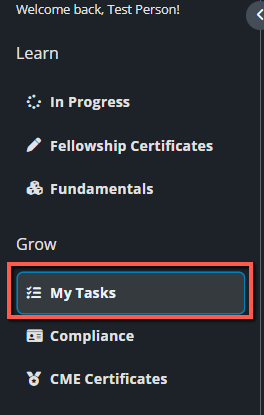
The assigned content will also appear on the Learner Homepage within the Group Workspace as well as under the “My Tasks” under the Grow Heading on the left hand side menu.
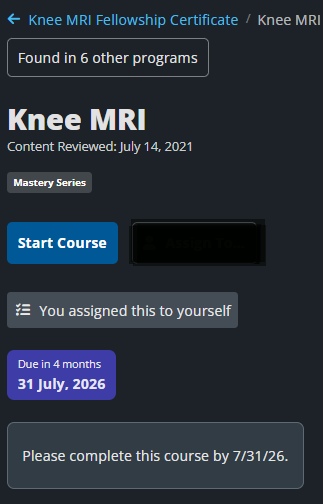
On the homepage for assigned courses or programs, learners will see the due date, who assigned it, your group / workspace, and the custom message that you entered.
How to edit Tasks
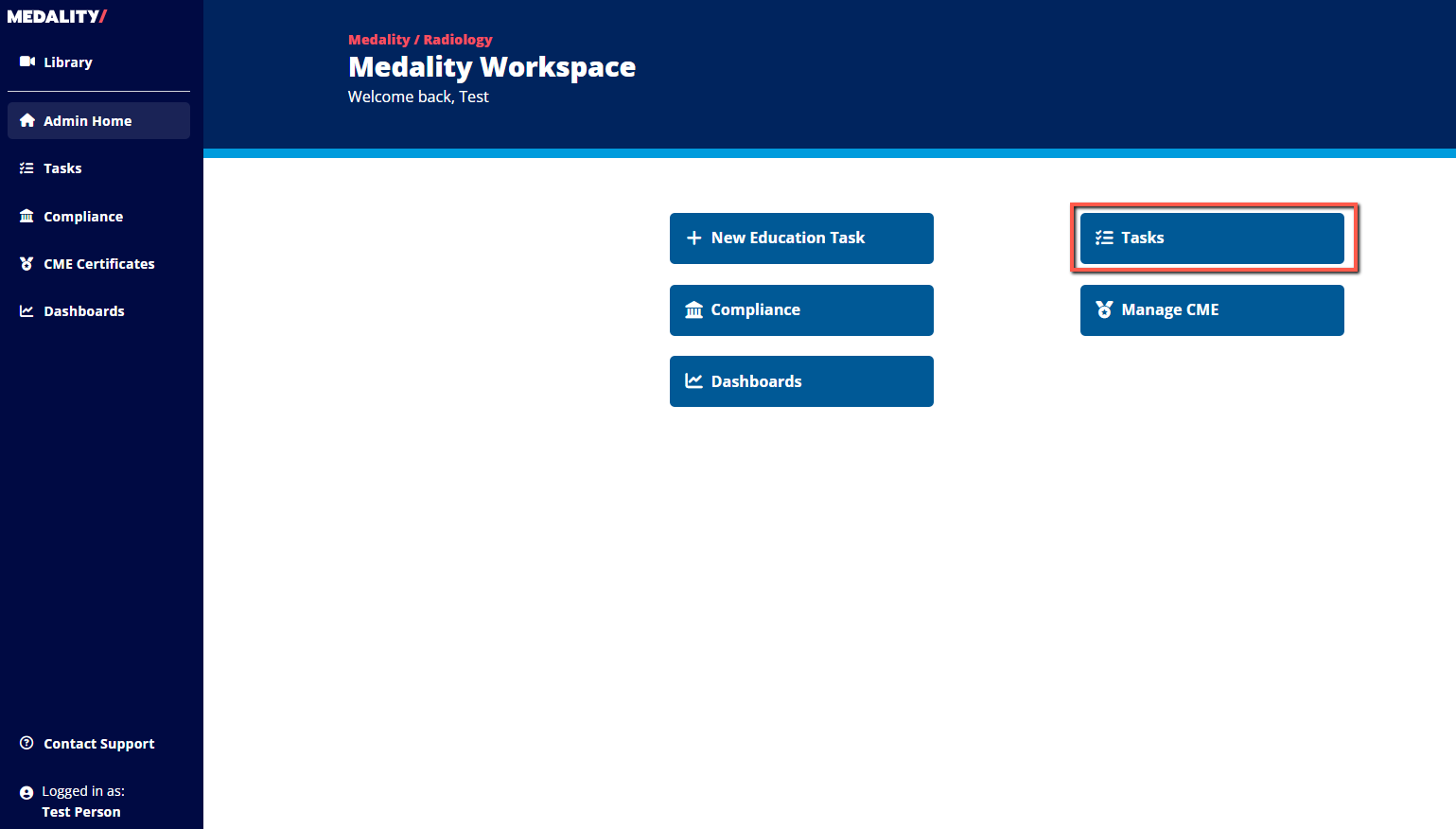
Return to the Homepage and then select Tasks.
On this page, you can filter and verify the tasks assigned to each user, along with the due dates and status of each assignment.
(You can also use the “Add Task” button to get back to the Assign Task workflow.)
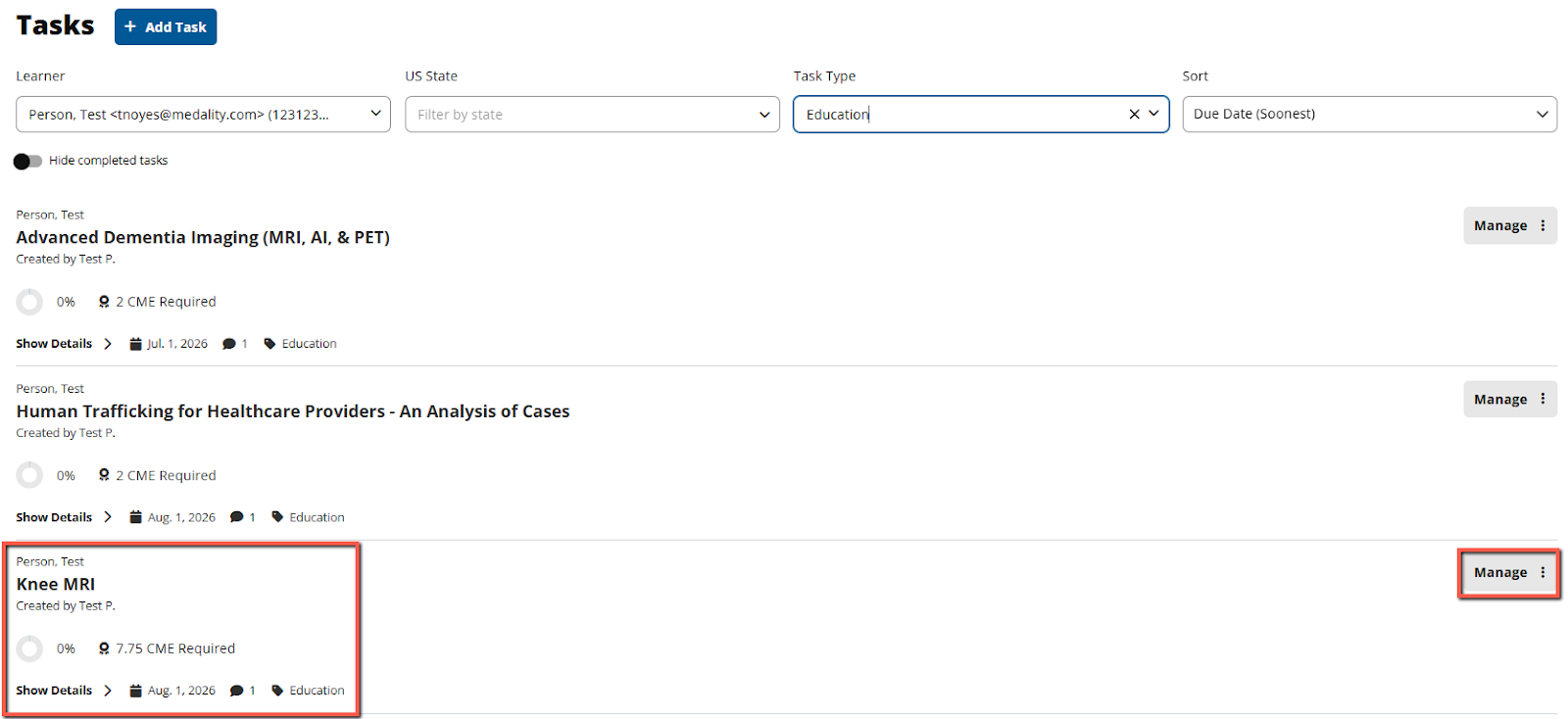
It's also the place where content assignments can be removed.
- Remove assignments
Scroll the table to the right (if necessary) to access the 3-Dot Menu and select Remove Assignment.
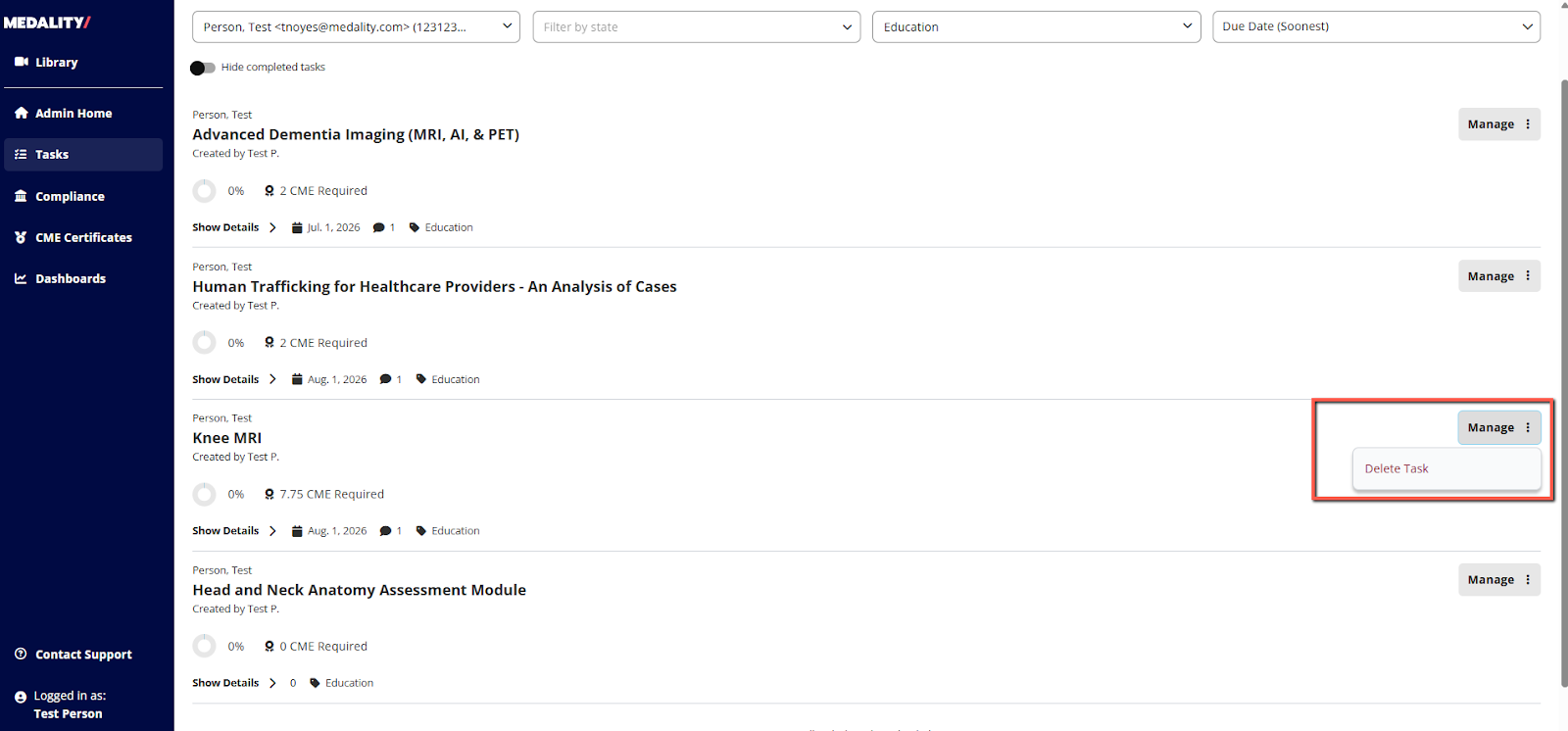
When “Delete Task” is selected, you will receive a confirmation message:
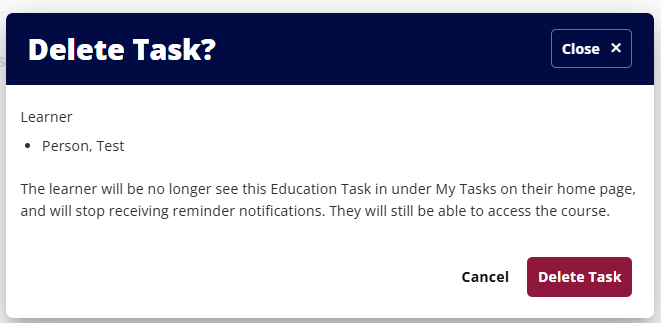
Once confirmed, the course or program will disappear from the Learner Homepage.